

- Hellfire
- Deck
Deck screen
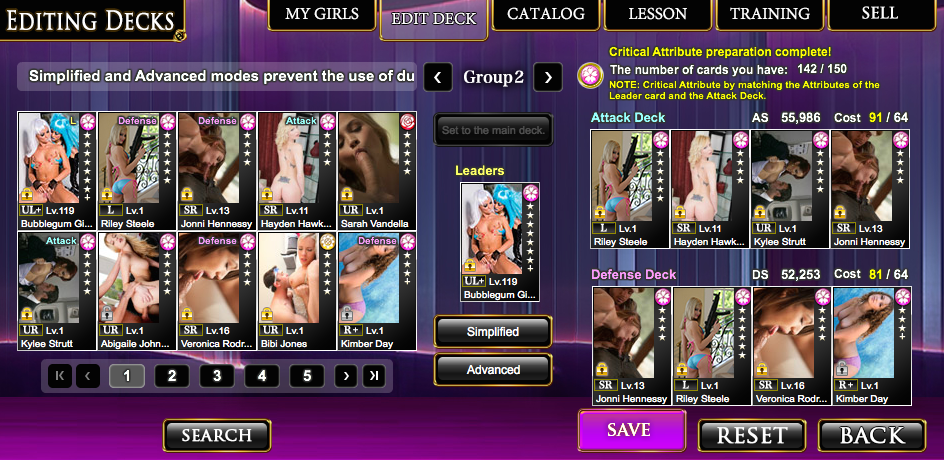
At the top of this page, the tabs lead to shortcuts to their respective pages. On the left is your cards, available to put into any of your decks (your able to have 5 decks total). Remember that you cannot put a single card into more than one deck. You can however put the same card into both the attack and defense sections of a deck. Also, if you have a duplicate card, you can have a few of the same cards in the same deck. The search button below helps filter your cards.
In the middle, it shows the current deck (Group 2 means deck 2). Under that is the slot for your leader card. Each deck needs a leader, and you usually want it to be your rarest card. Leaders use their skills during fights.
Below the leader is 2 options in how to auto set your deck. Simplified isnt very helpful, so dont use it. Advanced lets you either empty all other decks, or set your best cards in a deck. You want to auto a deck of all the same attribute for the best results.
Right of the leader are 4 other slots, for the rest of the deck.
Leaders
From all the girls in a deck, you choose one to be the leader.
It is the leader who fights for you in a battle against a rival (missions).
If your leader has a skill, she will use that skill during any fight.
It is the leader who fights for you in a battle against a rival (missions).
If your leader has a skill, she will use that skill during any fight.
Decks
A deck comprises five cards, including a leader.
You can also create five types of different decks, saving them as Group1 through Group5.
You can also create five types of different decks, saving them as Group1 through Group5.
Editing Decks
Your editing task consists of selecting one girl to be leader, and four girls for an attack deck and four girls for a defense deck. Girls with the same name cannot both be leaders and in the decks. They also cannot both be in the same deck.
NOTE: You can, however, do this when the season or rarity is different.
The attack deck is for when you engage in battle. The defense deck is for when you are engaged in battle.
Each deck should be configured to run within your costs. If you do not form any decks, the girls will form themselves into decks for you.
When battle occurs, if there are any costs left over, the girl with highest available capability will automatically participate.
The attack and defense decks form one set. You can have a total of five sets.
Create decks to suit different battle circumstances.
NOTE: You can, however, do this when the season or rarity is different.
The attack deck is for when you engage in battle. The defense deck is for when you are engaged in battle.
Each deck should be configured to run within your costs. If you do not form any decks, the girls will form themselves into decks for you.
When battle occurs, if there are any costs left over, the girl with highest available capability will automatically participate.
The attack and defense decks form one set. You can have a total of five sets.
Create decks to suit different battle circumstances.
Batch Settings
The Edit Deck screen also offers two additional features for creating decks: Simplified and Advanced.
These features allow you to automatically configure all your decks in all your groups.
Simplified
Configures all your decks using the following batch process.
Advanced
Configures your decks with a batch process based on a type, which is different than the Simplified process.
- Types
These features allow you to automatically configure all your decks in all your groups.
Simplified
Configures all your decks using the following batch process.
- The leader card for the first deck is chosen from the card with the most powerful attack and defense totals.
- The attack deck is chosen from the cards with the most powerful attack strength, excluding the card already chosen as the leader.
- The defense deck is chosen from the cards with the most powerful defense strength, excluding the card already chosen as the leader.
- Steps 1 through 3 are repeated for all decks.
Advanced
Configures your decks with a batch process based on a type, which is different than the Simplified process.
- Types
- Recommended
Builds decks in strength order, similar to the Simplified process, while ignoring card attributes. - Lolita, Chick, Lady, or Madame
Builds decks in strength order, while maintaining an attribute focus.
- Just This Deck
Configure only the currently selected deck. - Empty Other Decks
Configure other decks, excluding the one currently selected, after removing all cards from them. - All Decks
Configure all decks.
Costs
This is the value necessary for girls to participate in battle.
Costs are set for all the girls parameters.
Costs are set for all the girls parameters.
Attack Cost
This is the value necessary for girls when editing an attack deck.
The higher the attack cost, the more capable the girls are that can join the battle for you.
Attack cost is completely used up in battle. Regardless of how much is used for your attack deck, any left over will be used for the automatic selection of backup members. Attack cost recovers one unit every one minute.
The higher the attack cost, the more capable the girls are that can join the battle for you.
Attack cost is completely used up in battle. Regardless of how much is used for your attack deck, any left over will be used for the automatic selection of backup members. Attack cost recovers one unit every one minute.
Defense Cost
This is the value necessary for girls when editing a defense deck.
The higher the defense cost, the more capable the girls are that can join the battle for you when you are attacked.
A portion of the defense deck's set defense cost is used when you are attacked. Defense cost recovers one unit every one minute.
NOTE: The values for the attack and defense costs are the total cost for the entire deck, including that of the leader card.
NOTE: It is possible to create a deck that exceeds your current cost budget.
NOTE: In a battle with a Raid Boss, the leaders of all five groups, and all attack members will be called to battle.
NOTE: During a battle against another player, you will fight with the attack members that fit with your cost budget as well as any backup members.
The higher the defense cost, the more capable the girls are that can join the battle for you when you are attacked.
A portion of the defense deck's set defense cost is used when you are attacked. Defense cost recovers one unit every one minute.
NOTE: The values for the attack and defense costs are the total cost for the entire deck, including that of the leader card.
NOTE: It is possible to create a deck that exceeds your current cost budget.
NOTE: In a battle with a Raid Boss, the leaders of all five groups, and all attack members will be called to battle.
NOTE: During a battle against another player, you will fight with the attack members that fit with your cost budget as well as any backup members.
Editing Decks
Use the following procedure to add new girls or swap out girls in a deck.
- Get to the Edit Deck screen by clicking on either the Edit Decks button on the main page or on the Edit Decks tab after clicking on the Girls button.
NOTE: You cannot get to the Edit Deck screen from the Card Information screen. - Click on the right and left arrows beside the group names to navigate to the group you want to edit.
NOTE: Group1 will be selected if you have just finished watching the Tutorial. - Drag and drop cards from those at left (the cards you have) to the deck at right.
NOTE: Dropping a card on top of another card will swap the new card in for the old card. - Click the Save button to save your changes.
Setting a Main Deck
You can choose the group you want to serve as your main deck for use in events and battle from either the main page or the Edit Deck screen.
From the Main Page
From the Main Page
- Click on the right and left arrows beside the group names below the image of the cards to select the group you want to serve as your main deck.
NOTE: You cannot select a deck for which no leader has been chosen.
- Get to the Edit Deck screen by clicking on either the Edit Decks button on the main page or on the Edit Decks tab after clicking on the Girls button.
NOTE: You cannot get to the Edit Deck screen from the Card Information screen. - Click on the right and left arrows beside the group names to select the group you want to serve as your main deck.
- Click the Set as Main Deck button.
NOTE: You cannot select a deck for which no leader has been chosen.
Notes when Editing Decks
Among Different Groups
1. For Leaders
If it's the same image, but a different card, they can be included in separate decks.
2. For Attack Decks
If it's the same image, but a different card, they can be included in separate decks.
3. For Defense Decks
If it's the same image, but a different card, they can be included in separate decks.
4. For a Leader and an Attack Deck
If it's the same image, but a different card, they can be included in separate decks.
5. For a Leader and a Defense Deck
If it's the same image, but a different card, they can be included in separate decks.
Within the Same Group
1. For an Attack and Defense Deck
If it's the same image card they can be included in separate decks
2. For a Leader and an attack member
If it's the same image card, duplicates are not allowed.
3. For a Leader and a defense member
If it's the same image card, duplicates are not allowed.
4. Within the same Attack Deck
If it's the same image card, duplicates are not allowed
5. Within the same Defense Deck
If it's the same image card, duplicates are not allowed.
1. For Leaders
If it's the same image, but a different card, they can be included in separate decks.
2. For Attack Decks
If it's the same image, but a different card, they can be included in separate decks.
3. For Defense Decks
If it's the same image, but a different card, they can be included in separate decks.
4. For a Leader and an Attack Deck
If it's the same image, but a different card, they can be included in separate decks.
5. For a Leader and a Defense Deck
If it's the same image, but a different card, they can be included in separate decks.
Within the Same Group
1. For an Attack and Defense Deck
If it's the same image card they can be included in separate decks
2. For a Leader and an attack member
If it's the same image card, duplicates are not allowed.
3. For a Leader and a defense member
If it's the same image card, duplicates are not allowed.
4. Within the same Attack Deck
If it's the same image card, duplicates are not allowed
5. Within the same Defense Deck
If it's the same image card, duplicates are not allowed.
Displaying a Girl's Deck Status
Girls who meet the following conditions in the Edit Deck screen will have their Deck Status displayed.
L (leader): displayed for girls configured to be leaders.
A (attack deck): displayed for girls configured to be in the attack deck.
D (defense deck): displayed for girls configured to be in the defense deck.
+ (additional members): displayed for girls automatically added to an attack or defense deck during battle against another player within the remaining cost range.
NOTE: When multiple girls meet the conditions to have their Deck Status displayed, the status for additional members will be omitted.
L (leader): displayed for girls configured to be leaders.
A (attack deck): displayed for girls configured to be in the attack deck.
D (defense deck): displayed for girls configured to be in the defense deck.
+ (additional members): displayed for girls automatically added to an attack or defense deck during battle against another player within the remaining cost range.
NOTE: When multiple girls meet the conditions to have their Deck Status displayed, the status for additional members will be omitted.
What does it mean when there is a plus sign (+) on the girl?
When you train two of the same girls, they are marked with a plus sign, and their appearance and capabilities change.
Only girls trained by the player will have the plus sign. By default, girls who can receive benefits because they are ready for gachas, missions, and pieces, will not have the plus sign.
Only girls trained by the player will have the plus sign. By default, girls who can receive benefits because they are ready for gachas, missions, and pieces, will not have the plus sign.
I don't understand how lessons for girls work
- Drag and drop a girl from the list at left to the upper-right card frame of the girl who will be the lesson's base.
- Select up to five girls to be materials for the lesson and drag and drop them to the Materials Cards column.
- After checking the lesson fee, click on Lesson Start.
An error results when I try to begin the lesson, even though I should have enough for the lesson fee
You may have been attacked by another player, and some of your Eros might have been stolen.
Return to the main page, where the actual amount of Eros you have wil be displayed. Check and see whether you have enough for the lesson fee.
Return to the main page, where the actual amount of Eros you have wil be displayed. Check and see whether you have enough for the lesson fee.
I made a mistake and ended up using a girl I did not want to as a lesson material
Given the way the system is designed, there is no way to restore a girl to her former state if you mistakenly use her as a lesson material. Check everything before beginning a lesson.
For important girls, click on Protect in the Card Information screen. You will no longer be to use that girl as a lesson or training material, or to sell her.
For important girls, click on Protect in the Card Information screen. You will no longer be to use that girl as a lesson or training material, or to sell her.
I don't understand how training for girls work
- Drag and drop a girl from the list at left to the upper-right card frame of the girl who will be the training's base.
- Select a girl to be a material for the lesson and drag and drop her to the Materials Cards column.
- After checking the training fee, click on Start Training.
I have two cards with the same girl. Yet they won't show up as training candidates.
Even when their names are the same, if one of the names is surrounded with brackets, that card will be treated as a different girl, even though the name is the same, and training won't work.
Other Problematic Issues
- Leader cards for groups 1 through 5 and/or cards registered as deck members (temporarily remove them from the deck).
- Protected girls.
I don't understand how to edit decks
- Drag and drop from the list at left to the center of the card frame of the girl you want to make the leader..
- Select up to four girls to be offense members and drag and drop them to the Offense Deck column at upper-right.
- Select up to four girls to be defense members and drag and drop them to the Defense Deck column at upper-right.
- Press the Save button below to save the deck.
I want to switch decks
In Hellfire Girls, you can create up to five decks. The one currently in use is the one displayed on the main page.
To switch to a deck you edited in another group using Edit Deck, under Girls, use the left-right arrows under Group in the lower middle section of the main page to switch decks there.
To switch to a deck you edited in another group using Edit Deck, under Girls, use the left-right arrows under Group in the lower middle section of the main page to switch decks there.
Cards I want to sell are not showing up in the Sale list
Girls that are protected or are in a deck cannot be sold.
When the girls are protected, from the Girls' Information screen, click on Release Protection
When in a deck, from the Edit Deck screen, drag and drop the desired girl from out of the deck, and then save the deck.
When the girls are protected, from the Girls' Information screen, click on Release Protection
When in a deck, from the Edit Deck screen, drag and drop the desired girl from out of the deck, and then save the deck.
I sold a card by mistake
Given the way the system is designed, there is no way to restore a girl to her former state if you mistakenly sell her. Check everything before beginning a sale.
The number of cards that I can own won't increase
Once you acquire a card, it will be registered to the catalog.
(In principle, cards you acquire will remain registered in the catalog regardless of whether you release them.)
To increase the number of possible registrations in the catalog, you can obtain a bonus which will enable you to increase the number of girls in your possession. There are a variety of ways that you can use to try and increase your catalog's capacity. Try completing some missions, getting some gachas, advancing training. Be aggressive.
You can receive a Catalog Bonus by
NOTE: Completion bonuses can be received up to three times for each puzzle series.
(In principle, cards you acquire will remain registered in the catalog regardless of whether you release them.)
To increase the number of possible registrations in the catalog, you can obtain a bonus which will enable you to increase the number of girls in your possession. There are a variety of ways that you can use to try and increase your catalog's capacity. Try completing some missions, getting some gachas, advancing training. Be aggressive.
You can receive a Catalog Bonus by
- clicking on the Girls button on the main page
- clicking on the Catalog tab
- clicking on the Catalog Bonus button at the bottom of the screen.
NOTE: Completion bonuses can be received up to three times for each puzzle series.
This page has been seen 1,930 times.
-
-
Created by onLast updated by on
-